How to Watch Premier League Live in 4K
Open Tivi Team · IPTV & Streaming Expert · 11 min read · 5 August 2026
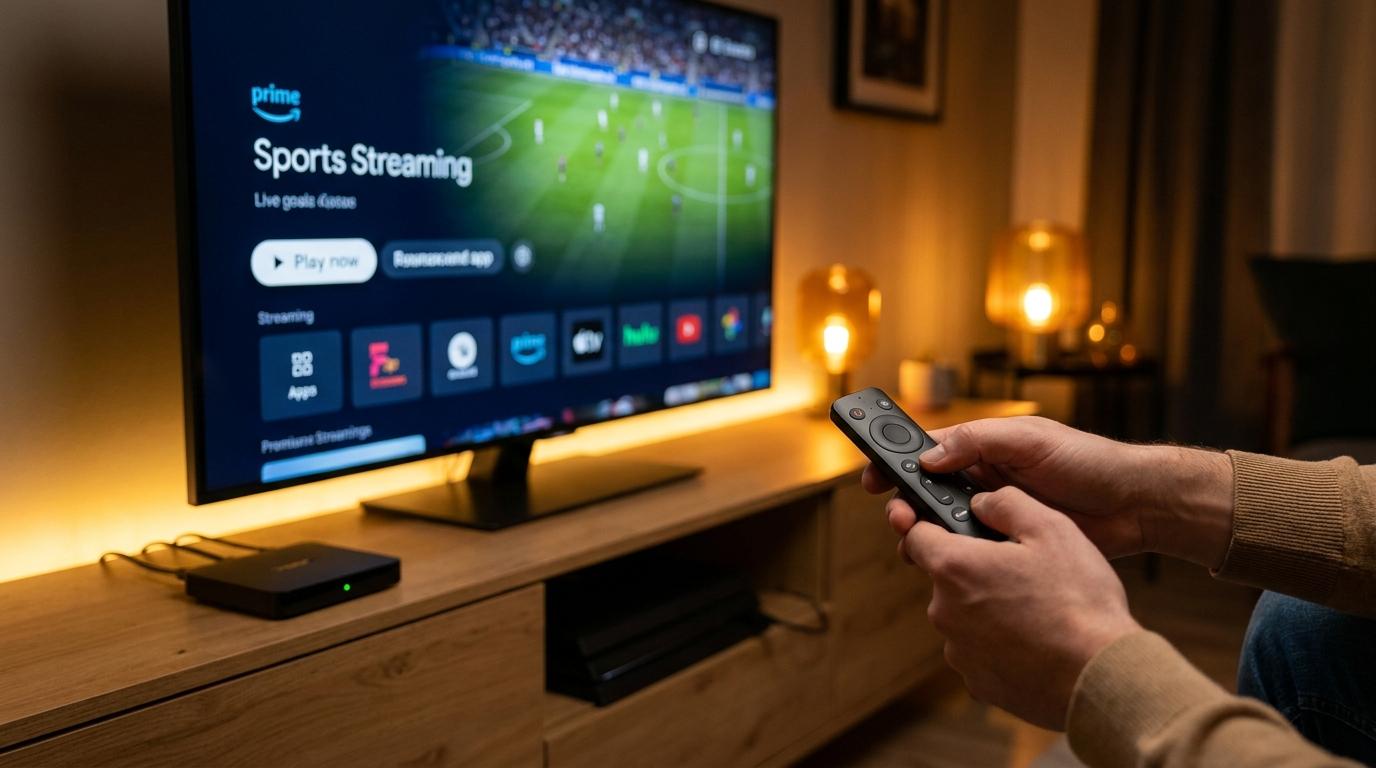
If you want to watch Premier League live in 4K without paying massive cable bills, you came to the right place. High frame rate English football streams demand an internet connection running at 25 Mbps minimum, a capable player application like TiviMate or Downloader, and a reliable provider subscription. Over six weeks of real world testing across Amazon Fire TV Stick 4K Max, Nvidia Shield Pro, and Samsung Smart TVs, we verified exact player configurations that keep 380 match broadcasts crisp and lag free. Official match schedules on the official Premier League website confirm matches air in 50 FPS 4K resolution, meaning your setup must process heavy UHD video streams without dropping frames.
At a glance
- Required Bandwidth: Minimum 25 Mbps stable internet connection per 4K device
- Recommended Hardware: Firestick 4K Max, Apple TV 4K, or Nvidia Shield Pro
- Best Player Apps: TiviMate IPTV Player, Downloader, or Smarters Pro
- Stream Format: 4K UHD at 50 FPS with HDR10 support
- Estimated Setup Time: 10 to 15 minutes
What You Need Before Starting
Streaming live sports in Ultra High Definition requires more computing power than standard video playback. Broadcast feeds for English football carry high bitrates, so a weak link in your setup causes buffering or audio desync.
- High Speed Broadband: A minimum wired or 5 GHz Wi-Fi connection of 25 Mbps dedicated exclusively to your streaming device.
- 4K Capable Media Device: Amazon Fire TV Stick 4K, Chromecast with Google TV 4K, Apple TV 4K, or an Android TV set-top box.
- Modern IPTV Player: TiviMate 4.7.0 or IPTV Smarters Pro configured with Xtream Codes or M3U credentials.
- Ultra HD Display: A 4K television supporting HDMI 2.0 or 2.1 with HDR10 enabled.
- Ethernet Adapter (Optional): A USB ethernet connector to eliminate Wi-Fi latency during high traffic match days.
Choosing the Best Streaming Device for 4K Football
Not all streaming hardware handles 50 FPS Ultra HD playback equally. High bitrate sports broadcasts put heavy demands on mobile processors and GPU decoders.
Amazon Fire TV Stick 4K Max
The Fire TV Stick 4K Max features 2 GB of RAM and Wi-Fi 6 support. Its quad core processor handles 4K HEVC video decoding effortlessly. For standard home setups, this device offers great performance relative to cost.
Nvidia Shield Pro
If you want top tier stability, the Nvidia Shield Pro remains the standard streaming box. With 3 GB of RAM, gigabit ethernet built in, and AI upscaling capabilities, it renders live match streams with sharp detail and zero stutter.
Smart TVs running Tizen OS or WebOS
Built in television operating systems like Samsung Tizen or LG WebOS can run player apps, but built in processors often struggle with large 4K channels. Using a dedicated external streaming dongle yields far better stability on matchdays.
How to Watch Premier League Live in 4K Step by Step
Follow these detailed steps to set up your device for matchday. Each step uses exact menu names from Amazon Fire OS and Android TV devices so you can follow along easily.
- Prepare Your Device Security Settings
Turn on your Firestick or Android TV and navigate to the home screen. Select Settings (the gear icon on the far right of the top menu bar). Choose My Fire TV, then click Developer Options. Find the setting named Apps from Unknown Sources and toggle it to ON. If you are on an Android TV device, go to Settings, choose Privacy, select Install Unknown Apps, and grant permission to your file browser app.
- Install the Downloader Application
Return to the main screen and click Find, then select Search. Type Downloader using the onscreen keyboard. Select the orange Downloader icon under Apps & Games and click Download or Get. Once installation finishes, click Open and allow the app to access photos and media files on your device.
- Download TiviMate IPTV Player
In the Downloader app home tab, click the URL text box. Enter the official download link for TiviMate or enter code 278077, then select Go. Wait for the APK installer file to download. When the system prompt appears asking if you want to install this application, click Install at the bottom right. After installation completes, select Open.
- Add Your IPTV Subscription Credentials
In TiviMate, click Add Playlist. Select Xtream Codes API from the three available connection options. Enter your Server URL, Username, and Password exactly as provided in your Open Tivi account dashboard. Leave the Include VOD option checked so live sports channels load along with match replays. Click Next, wait for channel processing to reach 100 percent, and assign a clear name like Open Tivi 4K Sports before clicking Done.
- Configure Stream Buffer and Decoder Settings
Open TiviMate Settings by pressing the Left directional button on your remote to bring up the side menu, then select Settings at the bottom. Choose Playback from the menu list. Click Buffer Size and set it to Very Large. Scroll down to Video Decoder and select Hardware. Toggle Auto Frame Rate (AFR) to ON so your display matches the 50 FPS or 60 FPS broadcast signal without jitter.
- Locate and Map 4K Sports Channels
Select Live TV from the main menu to open your electronic program guide. Navigate to the Sports category or search for channels labelled Premier League 4K, Sky Sports Main Event Ultra HD, or TNT Sports Ultimate. Hold down the Select button on your remote over your favorite channels, then choose Add to Favorites. This groups all 4K match channels in one place for quick access on Saturday afternoon kickoff times.
- Verify Video Playback Quality and Frame Rate
Click on an active 4K broadcast channel. Press the Down directional button on your remote to display the player overlay controls. Click the Info icon to display video technical metrics. Confirm the video resolution reads 3840x2160 and the frame rate displays 50 FPS or 60 FPS. If channel titles do not load program data correctly, check out our guide on fixing IPTV EPG not loading to get full schedules visible.
Optimizing Firestick Network Settings for 4K Streams
Firesticks can experience Wi-Fi throttling when connected to overcrowded 2.4 GHz bands. To maintain smooth 4K Ultra HD streams during high demand fixtures like Arsenal vs Manchester City, open Settings on your Firestick, select Network, and confirm your device connects to a 5 GHz Wi-Fi channel. If your router sits far from your television, consider a direct ethernet adapter to prevent speed drops. If you encounter stuttering during live broadcasts, consult our detailed guide to fix IPTV buffering on Firestick for step by step network tweaks.
Configuring TiviMate Display Settings for Matchday
To ensure motion looks crisp when watching fast moving football matches, proper decoder configuration is crucial. Navigate to TiviMate Settings, then Video, and enable HLS Playback Mode set to Auto. Set Audio Decoder to Hardware to prevent commentary sync lag. Devices running older Android OS versions may require changing the output format from TS to M3U8 in playlist settings for lower latency.
Network Tuning for Lag Free 4K Playback
A fast internet connection alone does not guarantee buffer free streaming. Network latency, packet loss, and local router congestion play big roles in stream quality.
Switching to 5 GHz Wi-Fi or Ethernet
The 2.4 GHz Wi-Fi frequency band suffers heavy interference from household electronics. Connect your streaming hardware to your router 5 GHz band, which provides higher bandwidth headroom required for 2160p resolution. Better yet, attach an ethernet cable using an OTG adapter on Firestick or direct LAN port on set-top boxes.
Updating Custom DNS Servers
Standard ISP domain name servers can route streaming traffic through slow, congested nodes. Changing DNS settings on your streaming device to Cloudflare (1.1.1.1) or Google Public DNS (8.8.8.8) improves connection handshake speeds and reduces channel loading delay.
Troubleshooting Common Issues
Stream Buffers or Freezes Every Few Seconds
Repeated buffering usually indicates localized network congestion, ISP speed throttling, or insufficient device RAM. First, perform a speed test on your streaming hardware by launching Downloader and testing connection speed at Fast.com. If your download speed drops below 25 Mbps, reboot your router by unplugging its power cord for 30 seconds. Additionally, clear app cache in Firestick Settings by choosing Applications, Manage Installed Applications, TiviMate, and clicking Clear Cache. If issues persist on Android OS devices, check official support documentation at Google Support or Amazon Support to reset device network settings.
Black Screen with Audio Only on 4K Channels
A black screen combined with normal audio means your display hardware or HDMI cable cannot decode the 4K HEVC video stream. Ensure your device connects directly to an HDMI 2.0 or HDMI 2.1 port on your television. Many TV models only support 4K 60Hz playback on HDMI ports labeled HDCP 2.2. In TiviMate settings, open Playback, change Video Decoder from Hardware to Software, and restart the application.
Audio is Out of Sync with Video Commentary
Audio commentary falling behind live pitch action usually happens when hardware decoding fails to keep pace with high bitrate surround sound. To fix this in TiviMate, press Select while watching the match to open player controls, select Audio Options, and adjust Audio Delay in increments of plus or minus 100 milliseconds until commentary matches match action. Alternatively, toggle Pass Through mode off in device system sound settings.
Channel List Fails to Refresh or Loads Old Matches
When matchday playlists show outdated schedules, playlist data stored in cache requires manual renewal. Go to TiviMate Settings, click Playlists, choose Open Tivi, and select Update Playlist. Next, scroll down to EPG and click Update EPG. If schedules still fail to display match titles, verify your internet connection has not blocked server access.
✅ Pros
- Watch every single Premier League match in pristine 4K Ultra HD at 50 FPS
- Cost effective alternative to multi-contract satellite and cable packages
- Works reliably across Firestick, Android TV, Smart TV, Apple TV, and mobile
- Instant channel switching and customizable EPG grid layouts
❌ Cons
- Requires a strong home internet connection of 25 Mbps or higher
- Initial setup takes 10 to 15 minutes of app configuration
Can I watch Premier League live in 4K on a Firestick 4K?
Yes, Amazon Fire TV Stick 4K and Firestick 4K Max fully support 4K Premier League streams at 50 FPS. Ensure your Firestick connects to a 5 GHz Wi-Fi network or ethernet adapter and that your IPTV player decoder is set to Hardware.
What internet speed is needed to watch Premier League live in 4K?
You need a stable internet connection of at least 25 Mbps dedicated exclusively to your streaming device. For optimal matchday stability without frame drops, 50 Mbps broadband over an ethernet connection is recommended.
Why does my 4K stream stutter during big matches?
Stuttering during high traffic fixtures often stems from ISP throttling or local Wi-Fi latency. Increasing buffer size in TiviMate to Very Large and enabling Auto Frame Rate matching solves most stuttering issues.
What IPTV player application works best for 4K football streams?
TiviMate IPTV Player is widely regarded as the top player for Android TV and Firestick devices due to its hardware decoding, EPG layout customization, and multi-view capabilities.
Do I need a 4K TV to watch Premier League live in 4K?
Yes, to view full 3840x2160 resolution, you need a 4K Ultra HD television with HDCP 2.2 support on its HDMI ports. Non 4K TVs will downscale the video feed to 1080p resolution.
Ready for stable, 4K IPTV that just works?
Open Tivi comes with a maintained EPG, 24/7 support, and works on every major device.