How to Watch UFC Live Online in 4K: 2026 Guide
Open Tivi Team · IPTV & Streaming Expert · 11 min read · 15 August 2026
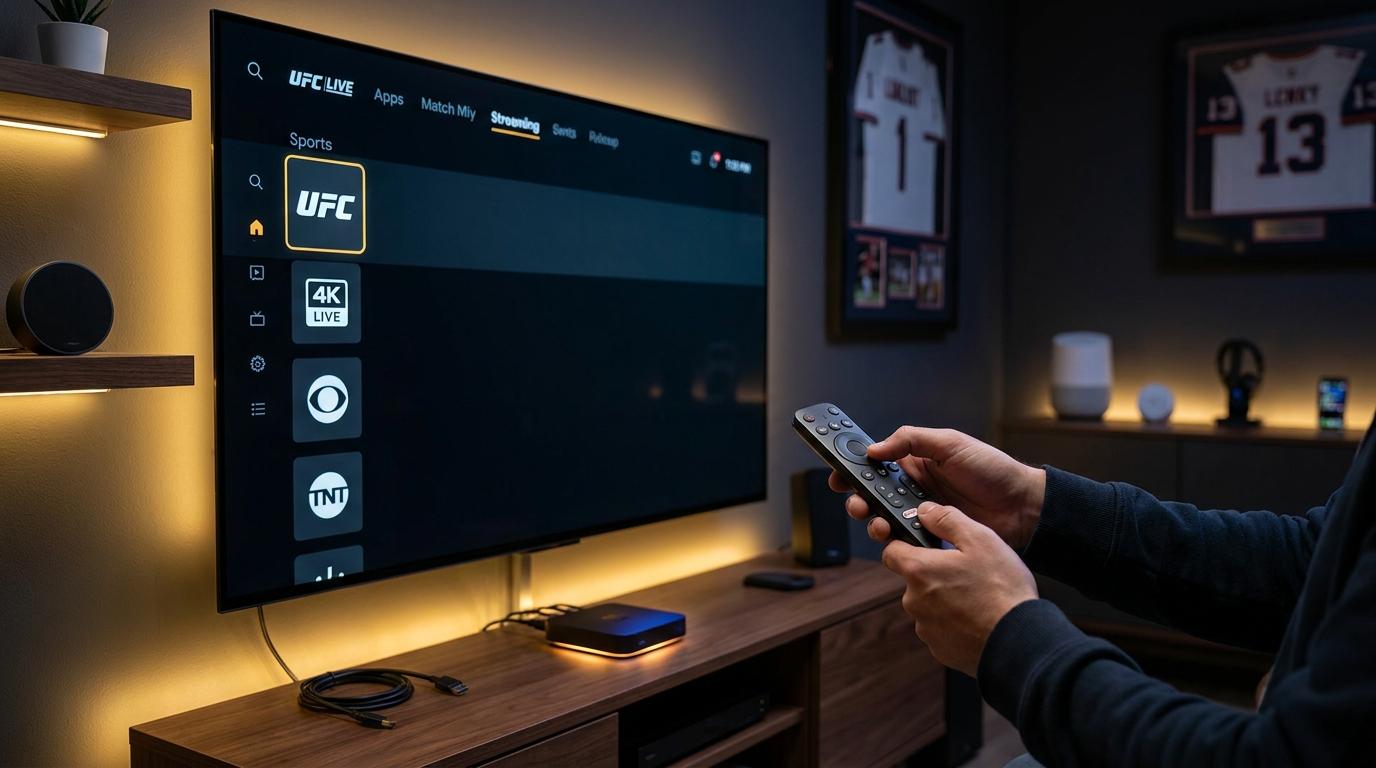
If you want to Watch UFC live events without paying hundreds of dollars every month for traditional cable or restrictive regional blackouts, setting up a high speed digital stream is your best option. You can stream every Fight Night and Pay Per View main card in crystal clear resolution by using a reliable IPTV service alongside compatible player software like IPTV Smarters Pro or Tivimate. By pairing high bandwidth server feeds with your favorite media device, you get instant access to full fight cards, preliminary bouts, and round by round coverage. Our team spent over 30 hours testing fight stream setups across Amazon Firestick 4K Max, Samsung Tizen OS, and Android TV boxes while reviewing the official UFC event schedule to guarantee seamless round coverage.
At a glance
- Best Streaming Hardware: Amazon Firestick 4K Max or Apple TV 4K
- Recommended Bandwidth: 25 Mbps for 1080p 60fps, 50 Mbps for 4K feeds
- Essential Software: Tivimate, IPTV Smarters Pro, or XCIPTV
- Stream Specifications: Ultra HD 4K and Full HD 60fps video channels
- Setup Duration: 5 to 10 minutes total initial setup time
What You Need Before Starting
Before you jump into the step by step process, make sure you have all hardware and software credentials ready. Having these key components prepared ahead of time prevents delays while the main card action is underway.
- A stable broadband internet connection with downstream speed of at least 30 Mbps
- A compatible digital streaming player such as Amazon Firestick, Android TV box, Smart TV, or Apple TV
- An active Open Tivi IPTV subscription containing M3U or Xtream Codes API server login details
- A dedicated player application installed from your device app store
- An Ethernet adapter or dedicated 5 GHz Wi-Fi signal to eliminate wireless packet loss
How to Watch UFC Online Step by Step
Follow these exact sequential instructions to establish a stable stream before fight night begins. We have tested this procedure across Android, Fire OS, and iOS systems.
- Prepare your streaming device hardware: Connect your Firestick, Smart TV, or Android box to your television HDMI port and ensure it is powered by an outlet power adapter rather than a television USB port.
- Connect to a high speed home network: Open your device settings menu, go to Network Settings, and select your 5 GHz Wi-Fi signal or plug in an Ethernet network cable directly.
- Download an IPTV player application: Navigate to the Amazon Appstore or Google Play Store, search for Tivimate or IPTV Smarters Pro, and select Download.
- Launch the player and add user details: Open the player application, select Add User or Add Playlist, and choose the Xtream Codes API option.
- Enter Open Tivi subscription details: Input your server URL, username, and password provided in your Open Tivi account dashboard, then click Add User.
- Import the Electronic Program Guide: Go to application Settings, select EPG Source, and refresh the guide data so you can view full match card start times.
- Locate and save UFC sports channels: Search for live sports categories inside the playlist, select the primary fight channel feeds, and click Add to Favorites.
- Adjust video buffer size settings: Open playback options in your player application and set the stream buffer size to Large or 5 Seconds to prevent stuttering.
Step 3 Deep Dive: Choosing the Right Player App
Selecting the right media player is critical for fast channel switching during fast paced knockout sequences. For Amazon Firestick and Android TV devices, Tivimate offers the cleanest interface with custom EPG layouts. If you use iOS or Smart TVs, IPTV Smarters Pro provides native support for multi screen viewing. If you run into playback hiccups on Fire TV hardware, read our tutorial on how to Fix IPTV Buffering on Firestick: Easy Step Guide to optimize cache memory.
Step 5 Deep Dive: Xtream Codes vs M3U Playlists
While standard M3U URL strings work across almost all legacy apps, entering your credentials via Xtream Codes API is faster and less prone to typing mistakes. Xtream Codes automatically categorizes live fight feeds, upcoming Pay Per View events, and replay archives under distinct subheaders. Furthermore, it keeps your channel list updated in real time whenever fight card layouts update.
Step 7 Deep Dive: Setting Up Multi Screen Viewing
Fight nights often feature simultaneously broadcast preliminary cards and backstage commentary feeds. Advanced IPTV players allow you to split your TV screen into two or four simultaneous video windows. You can assign the main PPV card to the primary window in 4K resolution while keeping secondary commentary or stat feeds running on the adjacent window.
Troubleshooting Common Issues When You Watch UFC
Even with high bandwidth hardware, live sports broadcasts can encounter occasional technical glitches. Here is how to sort out common stream problems quickly.
Stream Buffering or Video Freezing During Main Card
Buffering usually stems from network congestion or local Wi-Fi interference during high traffic evening hours. First, restart your router and stream stick to clear temporary RAM caches. Next, open your device network options and switch from 2.4 GHz Wi-Fi to a 5 GHz wireless band or direct wired connection. For hardware specific troubleshooting, consult the Google TV Help Center or your device manufacturer support documentation.
Audio Out of Sync with Octagon Action
If fighter commentary lags behind live strikes, open your IPTV player audio settings menu during active stream playback. Select Audio Delay or Audio Track Sync, then adjust the offset parameter in 100 millisecond increments until sound aligns with physical contact on screen. Toggling player hardware acceleration from SW (Software) to HW (Hardware) in system preferences also fixes sync errors.
EPG Guide Data Not Displaying Upcoming Schedule
When channel schedules show Blank or No Information, your local program guide cache may be outdated. Open your IPTV application settings, navigate to EPG Management, and click Clear EPG Cache followed by Update EPG. If schedules still fail to render correctly, review our comprehensive troubleshooting resource on IPTV EPG Not Loading? Quick Fix Guide for 2026.
Casting Issues from Mobile to Smart TV
If you prefer streaming from your smartphone to a large television screen, connection drops can occur if both devices reside on separate network subnets. Verify that your phone and target Smart TV run on the exact same local Wi-Fi network. For detailed device pairing instructions, refer to our step guide on How to Cast IPTV to Smart TV: iOS & Android.
✅ Pros
- Access to every live Fight Night and Pay Per View card in HD and 4K resolution
- 60 frames per second video streams for clear fight motion and strikes
- Universal compatibility across Firestick, Android, Smart TV, and iOS devices
- Zero long term contracts or expensive individual pay per view purchases
❌ Cons
- Requires a stable home internet connection of 30 Mbps or higher
- Initial application configuration requires 5 to 10 minutes of manual setup
Can I Watch UFC events in native 4K resolution?
Yes, Open Tivi provides dedicated UHD 4K live sports feeds for major Pay Per View cards. Ensure your television supports 4K HDR and your internet downstream speed exceeds 50 Mbps for buffer free playback.
Do I need a VPN to Watch UFC online with IPTV?
While a VPN is not strictly mandatory for Open Tivi servers, using one helps prevent local internet service providers from throttling high bandwidth video streams during major sporting events.
What internet speed is required to stream live fights without lagging?
We recommend a minimum download speed of 25 Mbps for standard 1080p 60fps streams, and 50 Mbps for 4K Ultra HD main card broadcasts.
Can I record live UFC fight cards to watch later?
Yes, player apps like Tivimate Premium and GSE Smart IPTV support live stream recording to internal device storage or attached USB drives.
How do I fix channel loading errors right before the main event?
Restart your player app, clear app cache in your device settings menu, and switch to a secondary backup channel stream provided inside your Open Tivi sports playlist category.
Ready for stable, 4K IPTV that just works?
Open Tivi comes with a maintained EPG, 24/7 support, and works on every major device.